
Classroom Noise Meter
Live volume monitoring for calm study environments on your whiteboard.
When students focus on independent work, whispering can slowly build into distracting classroom chatter. The digital noise meter provides immediate visual feedback on your projector or smartboard. Students see the volume change in real time, encouraging self-regulation without spoken reminders.
“Classroom Noise Meter” is a tool by ClassHelper, the free digital whiteboard for teachers. It runs directly in your browser with no account required and servers in Germany.
Lärmampel online ausprobieren
Misst die Lautstärke im Klassenraum live über das Mikrofon. Das Signal wird nur im Browser ausgewertet, weder aufgezeichnet noch übertragen.
Audio wird nur lokal im Browser analysiert und nie übertragen.
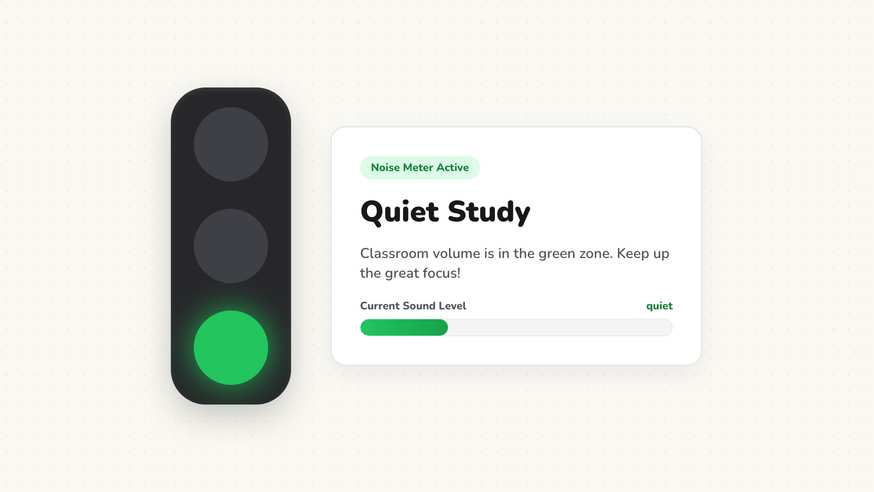
How the Classroom Noise Meter works
The Classroom Noise Meter transforms any connected microphone into a responsive sound gauge on your projector or interactive screen. Rather than buying specialized decibel hardware, teachers can open the tool in any browser tab to display dynamic sound levels.
The widget reads incoming audio amplitudes locally and reflects real-time acoustics through intuitive green, yellow, and red color bands. Green signals an ideal volume for focused concentration, yellow warns of rising chatter, and red indicates that room noise has exceeded the designated threshold.
Step by step
- Launch ClassHelper on your classroom display and add the Noise Meter widget from the toolbar.
- Grant microphone permissions in your browser when prompted; your setting will be remembered for future visits.
- Set the sensitivity threshold based on your activity, choosing a sensitive setting for silent reading or a higher threshold for collaborative work.
- Position the card prominently on your digital canvas so all students have an unobstructed line of sight.
- Choose whether to enable a gentle audio alert or rely exclusively on visual traffic light changes.
Using Classroom Noise Meter in the classroom
Silent independent study. Place the noise meter alongside your visual lesson timer. Because students see immediate visual confirmation when a pencil drop or whisper moves the gauge, they naturally moderate their own volume. Teachers avoid repeated verbal reprimands that inadvertently disrupt student workflow.
Small group collaboration. Group assignments require active communication, but multiple student discussions can quickly escalate. Set a moderate volume limit and agree with the class that yellow is completely acceptable while red signals a quick pause to lower voices.
Substitute teacher days. Guest teachers often find establishing quiet routines challenging with unfamiliar classes. Displaying the noise meter provides an objective, consistent classroom benchmark that students already know and respect.
Student-led threshold setting. Involve your class in calibrating the microphone at the beginning of the term. Let them test quiet whispers and normal talking volumes together. When learners help establish the boundary, they take greater ownership of classroom harmony.
Frequently asked questions about Classroom Noise Meter
Is the classroom noise meter free to use?
Yes. The noise meter is completely free and launches instantly in your browser without requiring an account. All basic whiteboard widgets are freely available for every teacher on ClassHelper.
What happens to the audio picked up by the microphone?
Audio is analyzed exclusively in real time inside your browser. No sound is ever recorded, transcribed, or uploaded to any external server. We use Stripe Payments Europe (Dublin, Ireland) to process payments. Only billing data goes there, never student or lesson data.
Can I adjust the microphone sensitivity for my classroom?
Yes. You can customize the threshold slider to match the acoustics of your room. Tiled classrooms or large gymnasiums require higher thresholds than carpeted, smaller study spaces.
Does the tool work on iPads and interactive flat panels?
Yes. ClassHelper works seamlessly in Safari, Chrome, and Edge on any tablet, laptop, or interactive touch screen. Just grant browser microphone permission on first use.
Is there an optional warning chime when it gets too loud?
Yes. You can toggle an optional audio chime or keep it strictly visual. Many teachers prefer silent visual mode so quiet students are not startled by sudden sounds.
How student and classroom data is protected is detailed in our ClassHelper privacy policy.