
Classroom Image Display
High-resolution photos, scientific diagrams, and primary sources on screen.
Visual aids bring abstract concepts to life in every subject. The classroom image display lets you present photos, science diagrams, and historical artifacts right beside your lesson notes. Drag graphics onto the board to anchor student comprehension and spark curiosity across the room.
“Classroom Image Display” is a tool by ClassHelper, the free digital whiteboard for teachers. It runs directly in your browser with no account required and servers in Germany.
Tafelbild online präsentieren
Fotos, Diagramme und Unterrichtsmaterialien hochladen oder auswählen, per Klick anpassen, rahmen, spiegeln und vergrößern.
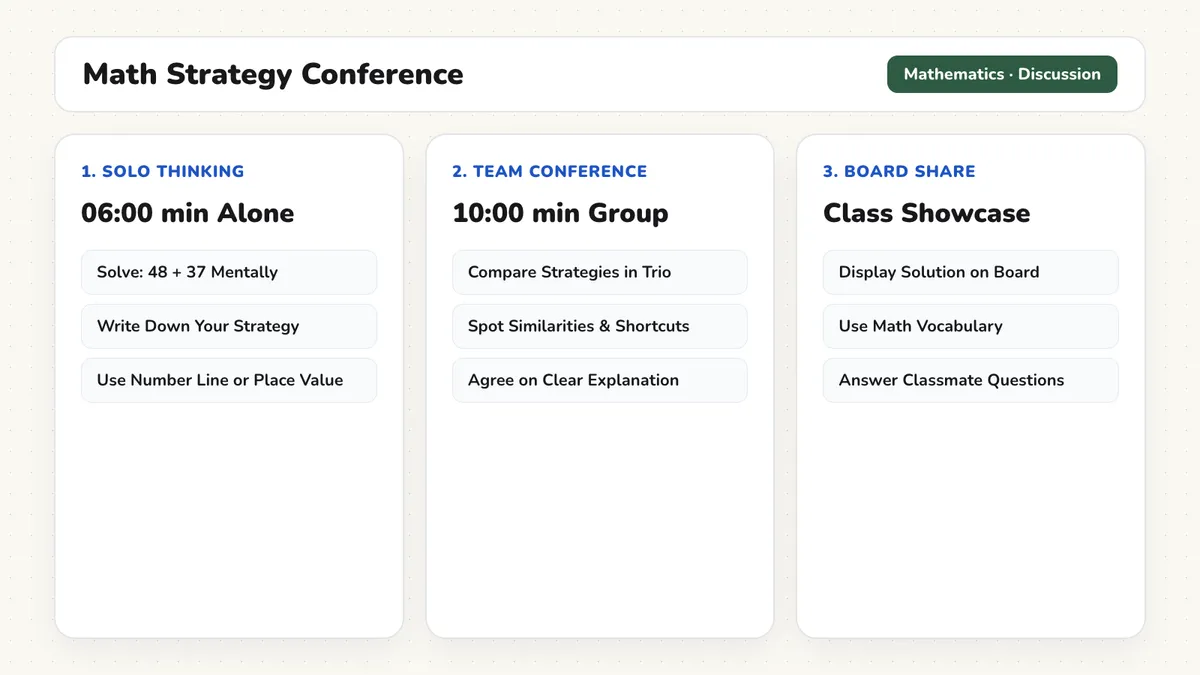

How the Classroom Image Display works
The Classroom Image Display enables educators to integrate visual media seamlessly into daily instruction. Whether projecting fine art for an art history discussion, a biological cross-section for a science lab, or a primary document for social studies, images appear sharp and well-proportioned on any classroom display.
Operating directly in the browser, ClassHelper lets you load visuals without opening bulky external presentation files. You can combine images with timers, drawing overlays, and text prompts on a unified teaching canvas.
Step by step
- Open your ClassHelper canvas and choose the Image tool from the media menu.
- Drag an image file from your computer directly into the card or browse your local files.
- Scale the image card by dragging its border to ensure every student sees fine details clearly.
- Position the picture alongside lesson instructions, guiding questions, or timer widgets.
- Replace or remove the visual smoothly when moving forward to the next instructional phase.
Using Classroom Image Display in the classroom
Science diagrams and anatomy. Project cell structures, planetary orbits, or geological rock cycles so students reference anatomical landmarks while completing laboratory assignments.
Art analysis and historical documents. Display high-resolution scans of historic maps, treaties, and paintings, prompting students to examine artifacts closely during inquiry discussions.
Visual storytelling prompts. Present thought-provoking creative writing photos at the start of language arts, inspiring descriptive vocabulary and narrative brainstorming.
Math problem representations. Show real-world geometry examples, architectural blueprints, and graphs, helping students connect abstract mathematical formulas to tangible structures.
Frequently asked questions about Classroom Image Display
Is the classroom image display tool free to use?
Yes. The image tool is completely free to use online without subscription fees, advertising, or software downloads.
How do I add images to my digital classroom board?
You can drag and drop picture files directly from your computer into the browser window or use the file picker button to select graphics.
Are my uploaded lesson images saved on public servers?
Your image files are handled securely within your local browser session and encrypted cloud storage for your account. We use Stripe Payments Europe (Dublin, Ireland) to process payments. Only billing data goes there, never student or lesson data.
What image formats are supported on the board?
The viewer supports standard image formats including PNG, JPEG, SVG, and modern WebP graphics for crisp projection at any resolution.
Can I resize and reposition pictures during live instruction?
Yes. Simply grab the card corners to scale the image up or down, or drag it across the canvas to place it beside relevant text directions.
How student and classroom data is protected is detailed in our ClassHelper privacy policy.