
Classroom Traffic Light
Intuitive visual signals for transitions, noise levels, and focus periods.
Clear classroom expectations work best when students can check them at a glance. The classroom traffic light displays red, yellow, and green status indicators directly on your projector. Teachers switch states with a single click, establishing clear guidelines for noise and movement.
“Classroom Traffic Light” is a tool by ClassHelper, the free digital whiteboard for teachers. It runs directly in your browser with no account required and servers in Germany.
Klassenampel online schalten
Licht antippen, um das Signal für die Klasse zu wechseln. Kostenlos und direkt einsatzbereit an der digitalen Tafel.
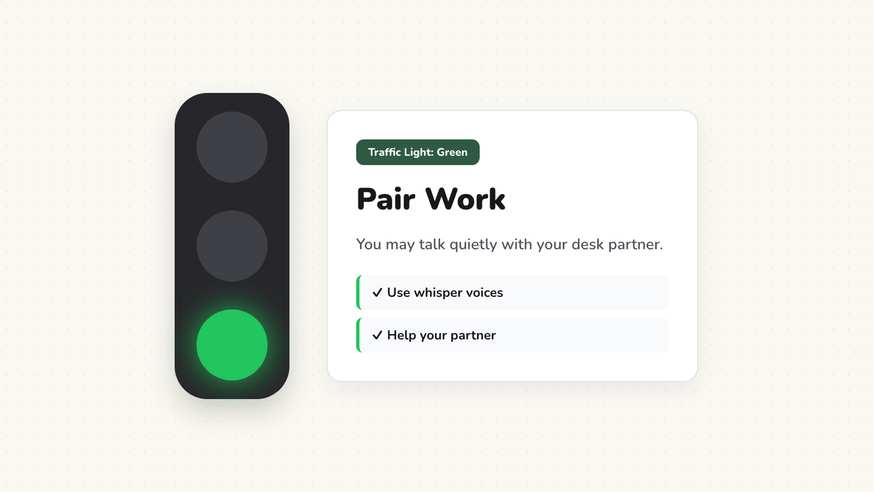
How the Classroom Traffic Light works
The Classroom Traffic Light brings a universally recognized visual signal straight to your projector or smartboard. Rather than repeating verbal reminders about current room expectations, teachers use the three familiar colored lamps to communicate acceptable noise and activity levels instantly.
Clicking or tapping any circular light changes the active status. The bright visual cues cut through room clutter, ensuring students across every desk row know exactly what is expected without teacher fatigue.
Step by step
- Open ClassHelper on your classroom display and add the Traffic Light card from the tool menu.
- Select your preferred color meaning, matching red, yellow, and green to your classroom routines.
- Add optional text labels beside each light if younger students need quick reading prompts.
- Scale the card and place it prominently near your main lesson board or timer widget.
- Tap the matching color circle whenever transitioning from instruction to practice or clean-up.
Using Classroom Traffic Light in the classroom
Direct instruction and listening. Switch the light to Red when presenting new concepts or sharing important instructions. Students recognize red as a prompt for total attention, silent listening, and paused keyboard typing.
Collaborative learning and peer help. Activate Yellow during workshop periods to indicate that quiet partner discussions are welcome, but across-the-room shouting is off limits. This keeps collaborative energy productive without overwhelming neighboring classrooms.
Brainstorming and group presentations. Turn on Green when students present their projects, ask open questions, or participate in structured whole-class debates.
Station rotations and clean-up. Use the traffic light as a silent countdown cue during transitions. Switching from green to yellow alerts teams to pack up materials, and red marks the deadline to be seated quietly.
Frequently asked questions about Classroom Traffic Light
Is the classroom traffic light widget free?
Yes. The classroom traffic light is completely free to launch directly in your browser without any account or software installation.
Does this traffic light require a microphone?
No. Unlike automated noise meters, this traffic light is manually controlled by the teacher with a simple click or touch. It does not access your microphone or record any sound.
Are student records or classroom settings saved online?
No student records are tracked or collected. We use Stripe Payments Europe (Dublin, Ireland) to process payments. Only billing data goes there, never student or lesson data.
Can I add custom labels next to each color?
Yes. You can add brief text descriptions for each color state, such as Red for Silent Focus, Yellow for Whisper Questions, and Green for Free Discussion.
Can the traffic light display more than one active light?
You can toggle between classic single-light mode and multi-light mode in settings depending on whether you want to indicate multiple concurrent classroom rules.
How student and classroom data is protected is detailed in our ClassHelper privacy policy.